# CSS-in-JS

次に**CSS-in-JS**という手法で、コンポーネント内にCSSも一緒に書くものになります。

その中でも`styled-components`というライブラリを用いるのが最も人気であり、扱いやすいため、`styled-components`を使った手法を説明します。

まずは、`styles-components`をインストールしましょう。

```bash
npm install styled-components
```

また、TypeScriptでの実装になるので、`@types/styled-components`もインストールします。

```bash
npm install @types/styled-components
```

では、BreadcrumbコンポーネントにCSSを当てていきましょう。まず、`Breadcrumb.tsx`に`styled-components`の`styled`をimportします。

<pre class="language-tsx" data-title="Breadcrumb.tsx◎"><code class="lang-tsx">import { useState } from "react";
import styles from "./Breadcrumb.module.css";
<strong>import styled from "styled-components";
</strong>
...
</code></pre>

使い方として、`<p>itemがありません。</p>`と`<p>itemが{items.length}あります</p>`にCSSを当てたいとします。その場合`` styled.p`当てたいCSS` ``のようにして、CSSを当てたpタグを作成することができます。記述する場所に関してですが、コンポーネントの外側に記述するようにしましょう。以下にて`NoticeParagraph`というCSSを当てたpタグを生成することができました。

<pre class="language-tsx" data-title="Breadcrumb.tsx◎"><code class="lang-tsx">...
type Props = {
  items: string[];
};

<strong>const NoticeParagraph = styled.p`
</strong><strong>  font-weight: 100;
</strong><strong>  color: gray;
</strong><strong>`;
</strong>...
</code></pre>

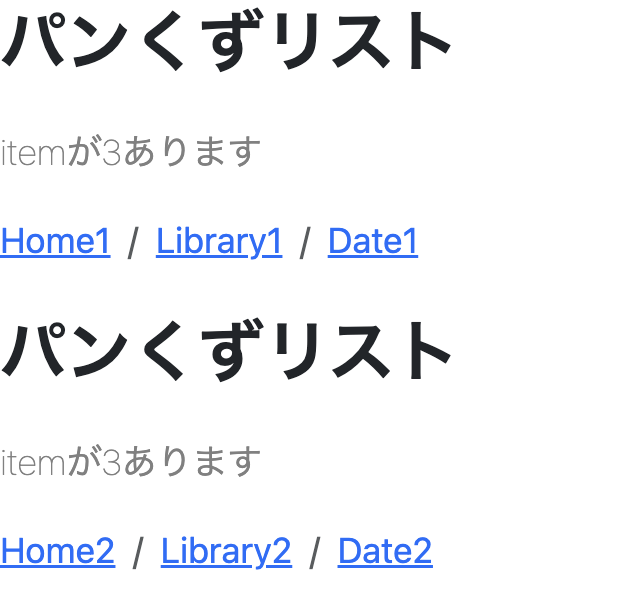
上記を利用するには、通常のタグのように記述します。

<pre class="language-tsx" data-title="Breadcrumb.tsx◎"><code class="lang-tsx">...
      {items.length === 0 ? (
<strong>        &#x3C;NoticeParagraph>itemがありません。&#x3C;/NoticeParagraph>
</strong>      ) : (
<strong>        &#x3C;NoticeParagraph>itemが{items.length}あります&#x3C;/NoticeParagraph>
</strong>      )}
...
</code></pre>

ブラウザにて以下のように確認できるかと思います。

<figure><img src="https://1869761657-files.gitbook.io/~/files/v0/b/gitbook-x-prod.appspot.com/o/spaces%2FcUBbYqol4PMzZJggiMqV%2Fuploads%2FkD19zkwxLIgIZdnZQh4C%2F202312071211.png?alt=media&#x26;token=af17da2c-4ecc-469a-9441-562a20b4b144" alt=""><figcaption></figcaption></figure>

また、`styled-component`にて作成したタグもpropsを受け取ることができ、`styled.p<型>`のようにジェネリクスに型を宣言することで受け取ることができます。

まずは受け取る型エイリアスを宣言しましょう。

<pre class="language-tsx" data-title="Breadcrumb.tsx◎"><code class="lang-tsx">...

<strong>type NoticeParagraphProps = {
</strong><strong>  isBlank: boolean;
</strong><strong>};
</strong>
const NoticeParagraph = styled.p`
  font-weight: 100;
  color: gray;
`;
...
</code></pre>

宣言した型をジェネリクスにて宣言し、呼び出し方は`${(props) => 処理}`のように記述します。

今回は、`isBlank`が`true`の場合は`red`、`false`の場合は`gray`の文字列を返却し、`color`が`isBlank`によって変化するようにします。

<pre class="language-tsx" data-title="Breadcrumb.tsx◎"><code class="lang-tsx">...

type NoticeParagraphProps = {
  isBlank: boolean;
};

<strong>const NoticeParagraph = styled.p&#x3C;NoticeParagraphProps>`
</strong>  font-weight: 100;
<strong>  color: ${(props) => (props.isBlank ? "red" : "gray")};
</strong>`;
...
</code></pre>

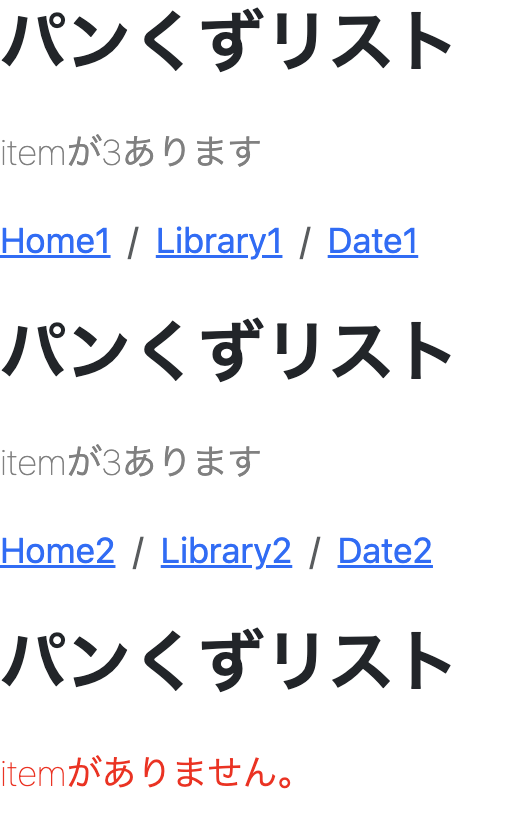
そして呼び出す部分にて、propsを渡します。ちなみにboolean型のpropsの場合は、`true`の場合そのprops名のみを記述するだけで`true`を渡すことができます。

<pre class="language-tsx" data-title="Breadcrumb.tsx◎"><code class="lang-tsx">...
      {items.length === 0 ? (
<strong>        &#x3C;NoticeParagraph isBlank>itemがありません。&#x3C;/NoticeParagraph>
</strong>      ) : (
<strong>        &#x3C;NoticeParagraph isBlank={false}>
</strong>          itemが{items.length}あります
        &#x3C;/NoticeParagraph>
      )}
...
</code></pre>

`App.tsx`にて、空のitemsを渡しましょう。

<pre class="language-tsx" data-title="App.tsx◎"><code class="lang-tsx">...
      &#x3C;Breadcrumb items={items2} />
<strong>      &#x3C;Breadcrumb items={[]} />
</strong>      &#x3C;UserDetail />
...
</code></pre>

ブラウザにて以下のように確認できるかと思います。

<figure><img src="https://1869761657-files.gitbook.io/~/files/v0/b/gitbook-x-prod.appspot.com/o/spaces%2FcUBbYqol4PMzZJggiMqV%2Fuploads%2FOK9HBZklrUIA4KBxGNr4%2F202312071227.png?alt=media&#x26;token=775dac10-1650-474c-997d-f35931dfdaa7" alt=""><figcaption></figcaption></figure>